Add a procedure
You can add a procedure via the Quick add menu on the bottom navigation menu, or via the Full calendar view and Agenda view under Options (Add Procedure).
Once 'Add Procedure' is selected, the add procedure screen will be displayed.
You can choose to add a procedure (or multiple procedures) to a horse or a client by selecting the toggle under Procedure settings. By default, procedures will be added to Horses.
If Quick Add procedure is selected while in the horse record, the horse name will be auto populated.
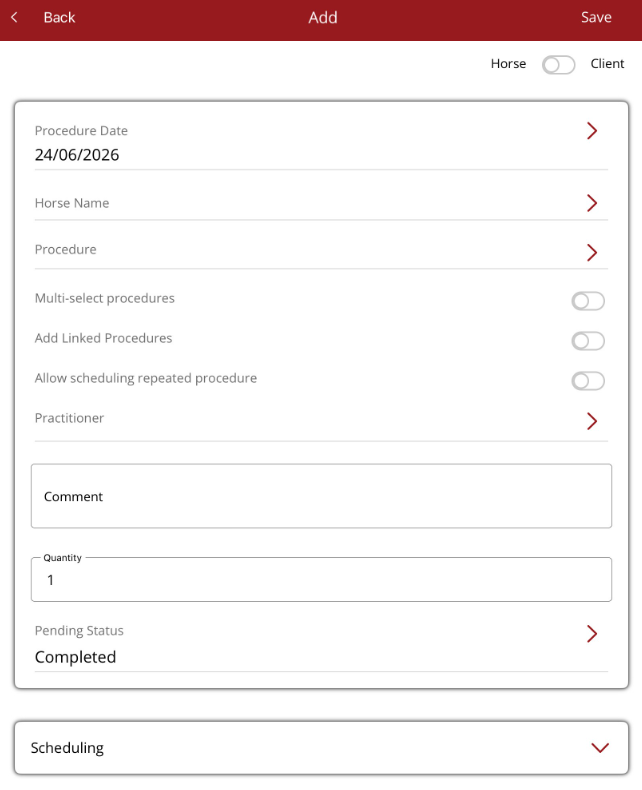
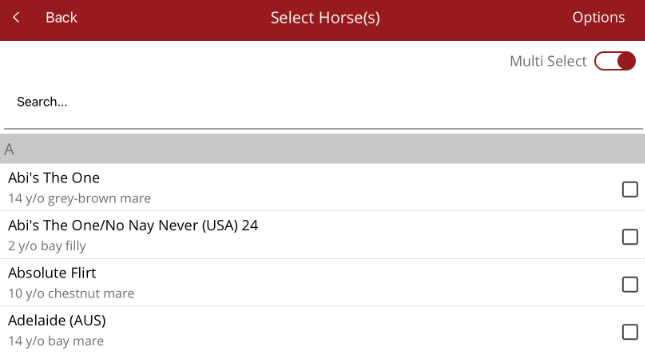
To add a horse/client, tap on the horse/client name field and the horse/client list will be displayed. Select the horse(s) or client(s) that are required. Multiple can be selected by turning on the Multi select toggle at the top of the list.
Tap on the procedure field and a list of Procedure types will be displayed. Select the type then select the procedure. You will be returned to the add procedure screen.
If more than one procedure is being added select the Multi-Select procedure toggle.
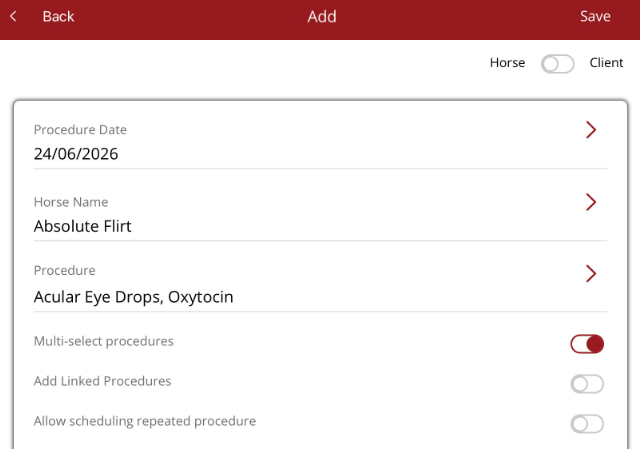
When Multi-select procedures is on, you can add multiple procedures when the procedure field is tapped
If Add Linked procedures toggle is on, any linked procedures associated with the procedure will be displayed for confirmation when Save is selected.
Procedures can also be scheduled over several days by selecting Allow scheduling repeated procedure toggle.
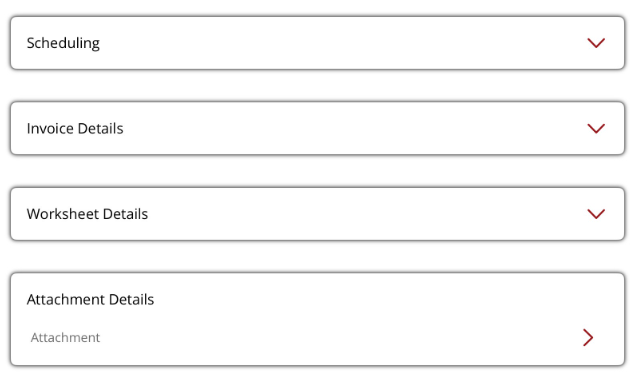
The following are also available on the Add procedure screen. To expand the option, tap on the label for the section
- Scheduling - set a time for the procedure
- Invoice details - will default to the message added to procedure. This can be overwritten or added. If multi-select procedures is on, this section will not be displayed.
- Worksheet message - will display default worksheet details
- Attachment details - add an attachment to the procedure.
Once all details have been added press 'Save' at top right. A message will display 'Procedure added successfully'.
The add procedure screen will remain open to allow you to add more procedures. If you have the permission to keep the horse name or keep the procedure on save, then these fields will remain populated.
When finished, select 'Back' at the top left to exit.