How to add multiple procedures
Under Procedure on the Add Procedure screen, select Multi-select procedures.
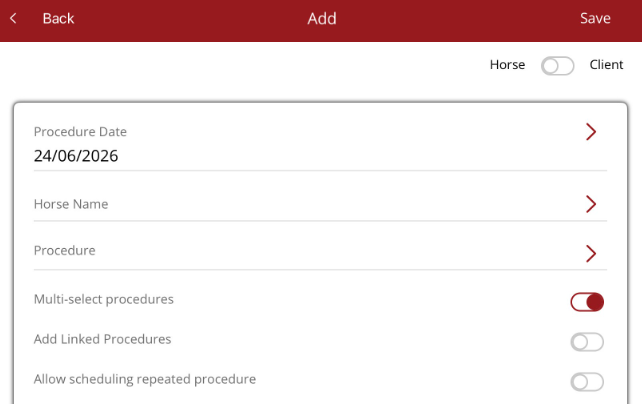
Tap on the Procedure field to display the Procedure type screen. Select the procedure type then select the procedures being performed. You can go back and select other procedure types until all procedures are added.
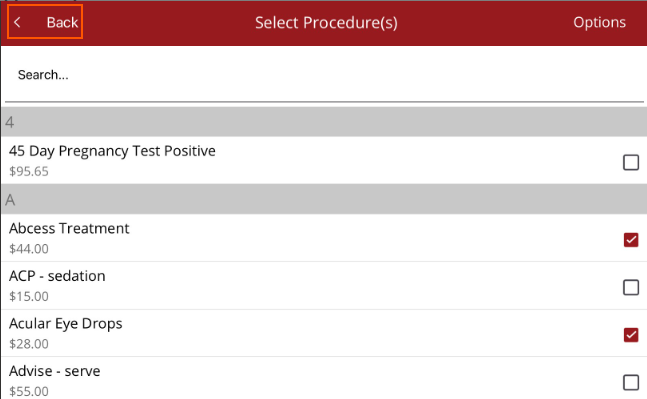
Once you have finished selecting the procedures, tap Back to return to the Add Procedure screen. The procedures selected will be displayed.
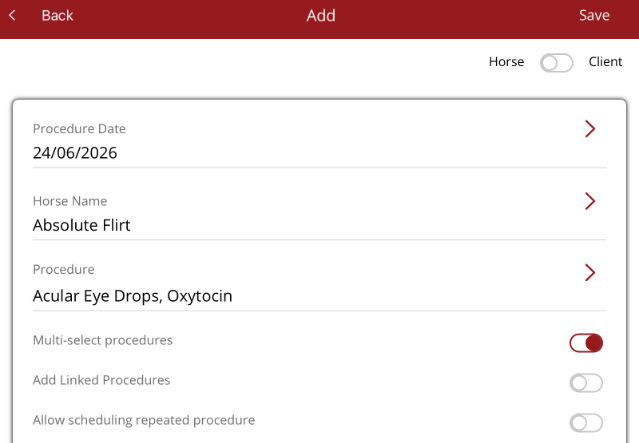
You can add a comment but it will copy across all procedures. You can add a comment to individual procedures once they are saved.
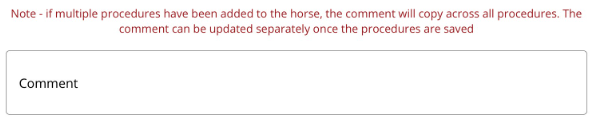
The invoice section will not be displayed when multiple procedures are selected. If there is a default invoice message this will be added to the procedures once they are saved. You can go to Procedures/Procedure Schedule/Done tab and make changes to the invoice message once the procedures are saved. This must be done before the procedure is approved.