Full Calendar
The Full Calendar can be used for task management by adding practitioners to procedures then adding a pracitioner filter so only their work is displayed.
The Full Calendar can be viewed by selecting the option on the Home Page above the Home Page Calendar.
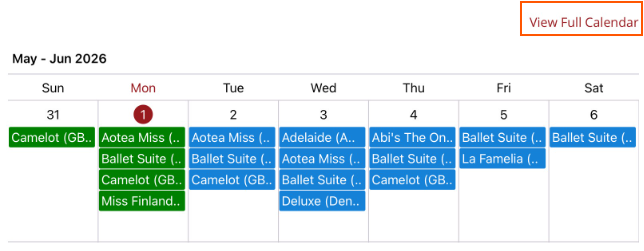
The colour coding indicates the status the procedures are in.
- Green with tick - approved completed procedure
- Green no tick - unapproved completed procedure
- Blue - scheduled procedure
- Red - cancelled procedure
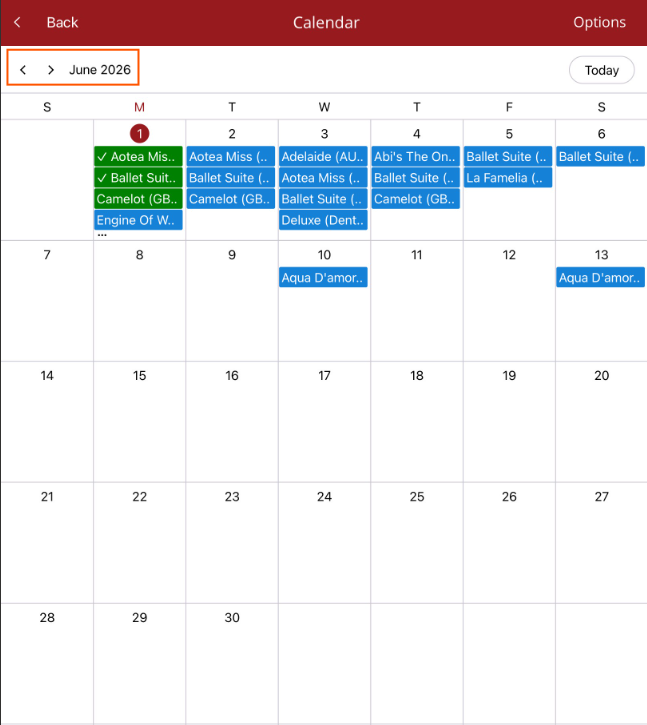
The current month will be displayed. You can move between months by using the month selector at the top of the calendar.

To return to this month no matter where you are in the calendar, select Today at the top right hand corner of the Calendar.

Return to the Home Page by selecting Back.

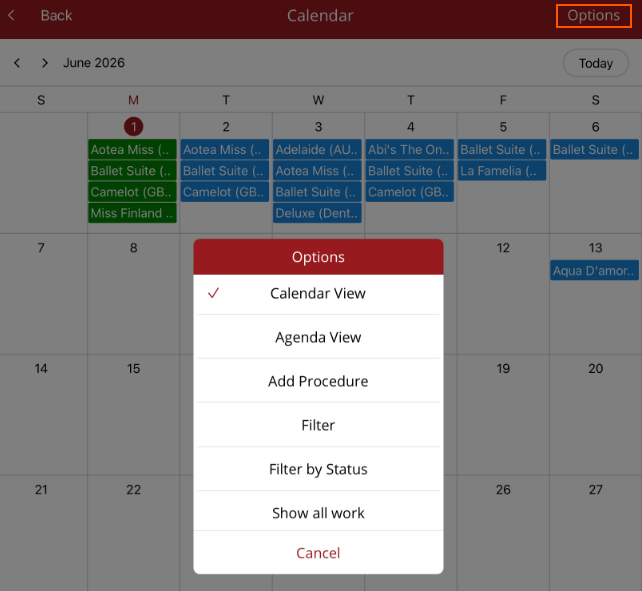
If a practitioner filter has been set, the practitioner will be shown at the top and only their work will be displayed on the calendar. To see all work, reset the practitioner filter to None via the Options menu.

The Calendar Options menu in the top right hand corner allows you to filter and manage your work on the Calendar. You can switch to the Agenda view via the Calendar Options menu or tap on a selected day and the Agenda view will be shown for that date.