Adding a new user to Premier mobile app
If you don't currently have an Ardex Mobile login, you can request access to the mobile app by contacting Ardex Support at support@ardex.com.au. Specify how many mobile app users you want to add, and provide a full name and email for each user.
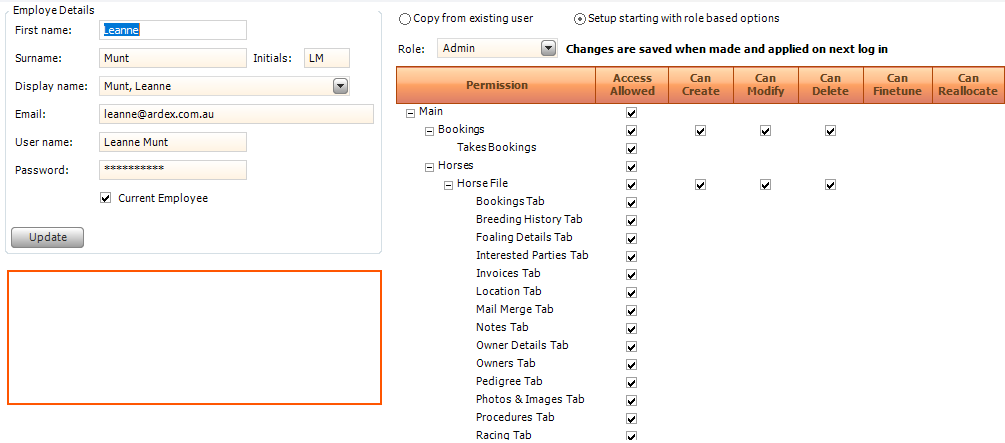
You will need to add all users that require access to the mobile app into Ardex Premier as well. This is done via Settings -> Options -> Employees. You may specify here which adhoc reports a user needs access to, and set other dbase access security preferences.
Select New to add the new employee. Select the permissions for the user so they can only access what is required for them to do their work. You can copy another user or manually select the permssions required.
If you have multiple business ledgers active in your database, you can restrict which ledger(s) the employee can access. The ledgers will appear under the new employees details.
Save your changes. You can now contact Ardex Support at support@ardex.com.au and they can add the new user to your mobile domain, create a password and link the new user's employee record in Premier to the mobile app.
Users can now download the Ardex Premier mobile app onto their device. Note that support staff at Ardex can add additional restrictions on mobile app logins by request (e.g. prevent email communications to horse owners via the app, prevent access to horse ownership info).
Special mobile app featurs like 'send email messages immediately' and 'record audio messages' can be enabled for a user by request.